Kiosk Combo Setup
1. Create the Mix and Match
At Back Office>Promotions>Mix And Match, add new.
Use these settings for the example below.
- Set the combo name and description.
- Set Total Qty to 3 (can vary depend on combo's sides), Price to 0.00, set Discount Amount and Discount % to 0.
- Choose the offer dates and a Report Discount name, such as Combo Discount.
- Next, add the three groups.
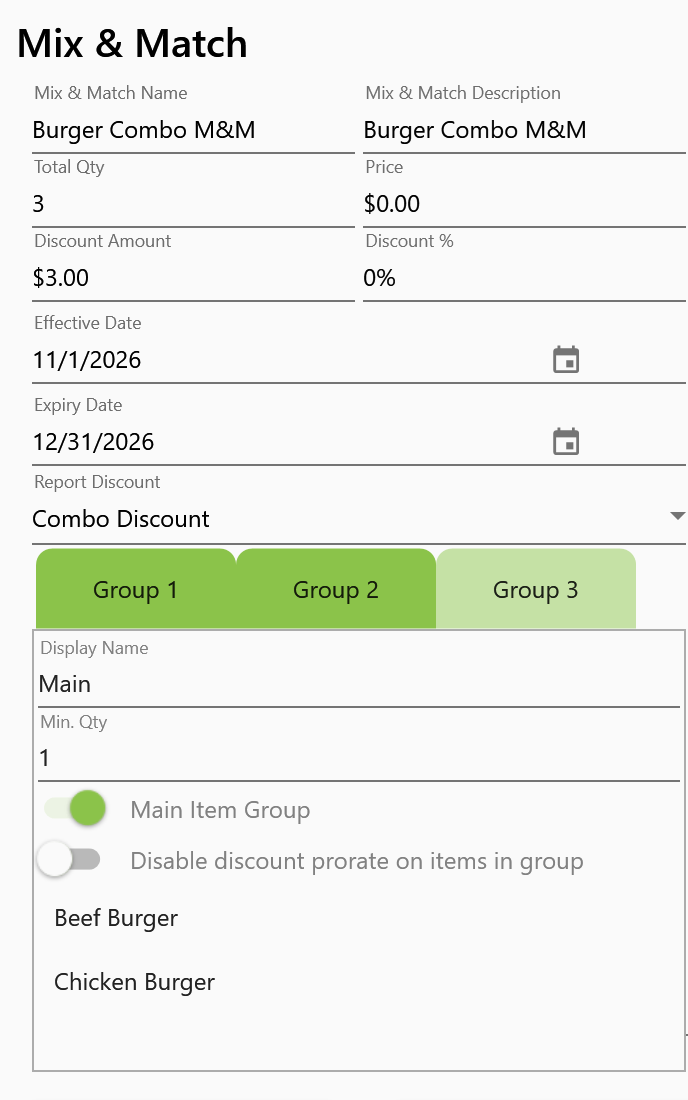
Example setup screen with the main burger group selected
Complete the three groups
Add the choices to each group. Min. Qty 1 means the combo needs one item from that group.
| Group | Display Name | Example items | Min. Qty | Main Item Group |
|---|---|---|---|---|
| 1 | Sides | Fries or Kimchi | 1 | OFF |
| 2 | Drinks | Iced Americano or Iced Latte | 1 | OFF |
| 3 | Main | Beef Burger or Chicken Burger | 1 | ON |
Turn Main Item Group ON for the burger group only. You can put several burgers in this group. The burger counts toward the combo but is hidden from the side and drink selection screen.
Discount sharing: Start with Disable discount prorate on items in group OFF in every group. ON means that group still counts toward the combo, but its part of the saving is shared across the other groups. Do not turn it ON for every group.
Click OK to save the Mix & Match.
2. Link the Modifier Menu
- Open or create the burger's Modifier Menu.
- Add its Modifier Groups, such as bun or sauce choices, if needed.
- In Combo Mix and Match (optional), choose Burger Combo M&M.
- Click Save.
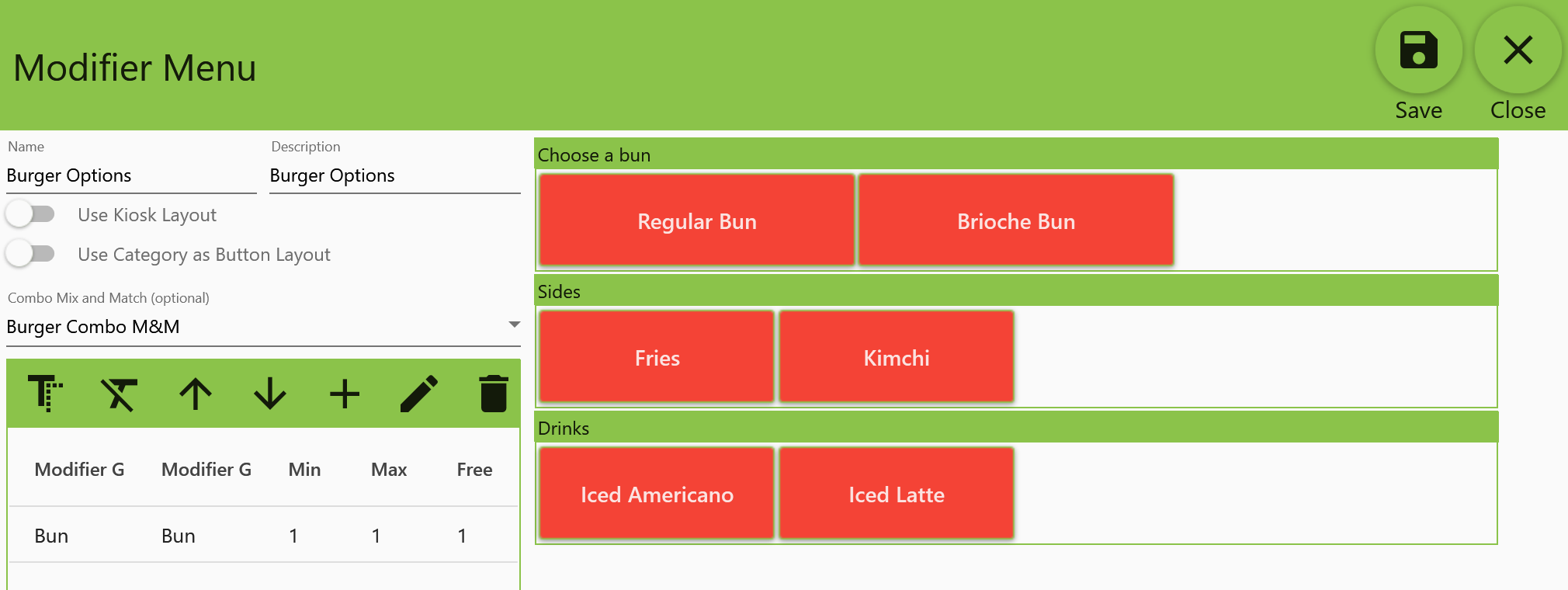
Example setup screen with the combo linked to a Modifier Menu
3. Attach the menu to Items
Attached the Modifier Menu to Item.
Open Beef Burger in item setup. Select its Modifier Menu and save. Repeat for Chicken Burger and every other main item. They can use different Modifier Menus, but every menu must link to the same combo offer.
Important: Adding a burger to the main group alone does not open the combo screen. Its Modifier Menu must also link to the combo.
Tag: