Menu Item Out Of Stock - 86 Item
This document shows you how to add common items you want to set out of stock/86 quickly, so your till or kiosk will show that the item is Sold Out. This also syncs with your Uber Eats Integration to prevent customers from ordering these items through Uber Eats.
Step 1: Get to the Front Office Menu.
From Sales Screen -> Function -> Office -> Menu Item Out Of Stock
From BackOffice -> Front Office -> Menu Item Out Of Stock
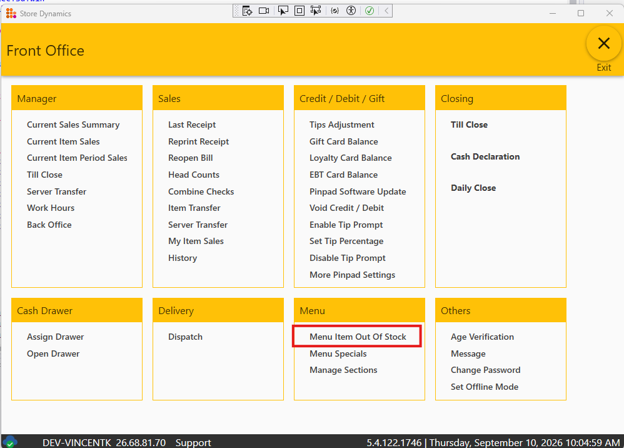
Step 2: Add Items You Regularly Need To Set Out Of Stock/86
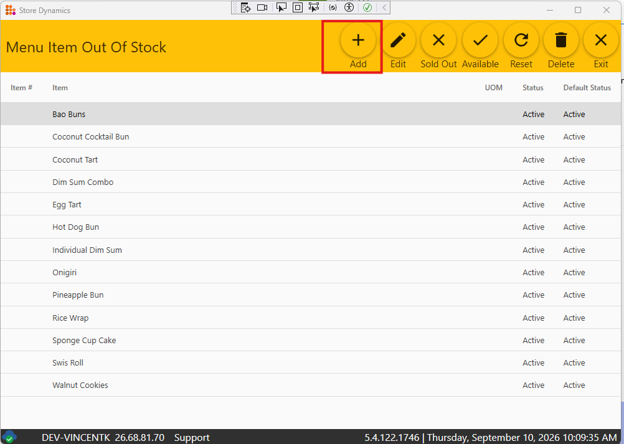
Click Add to start adding items you want to regularly set as Sold Out and make Available again to order
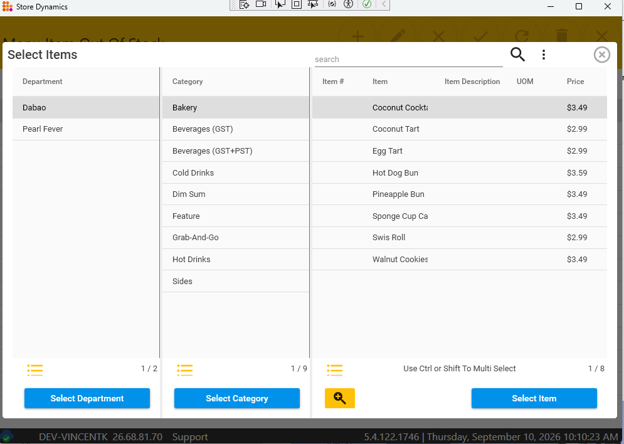
Use the search dialog to search or select entire departments, categories, or specific items
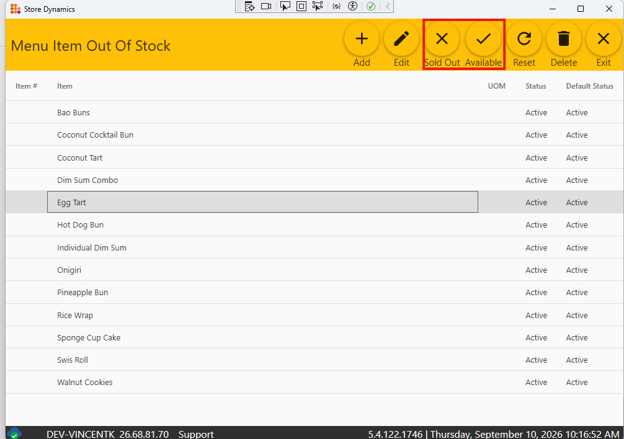
Step 3: Set Items to Available or Sold Out as needed
You can select single item or use Ctrl or Shift to select multiple items at once, then click “Sold Out” or “Available”. This will set the item to that status, and if you have Uber Eats Integration, it will also notify Uber the item is Sold Out and Available again.
Step 4: You can also customize the Default Status when using Reset
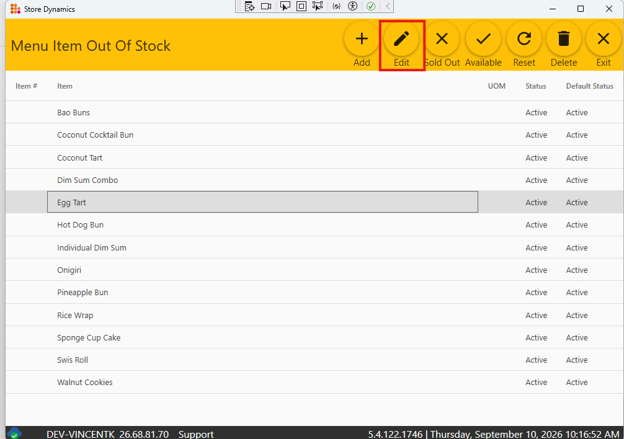
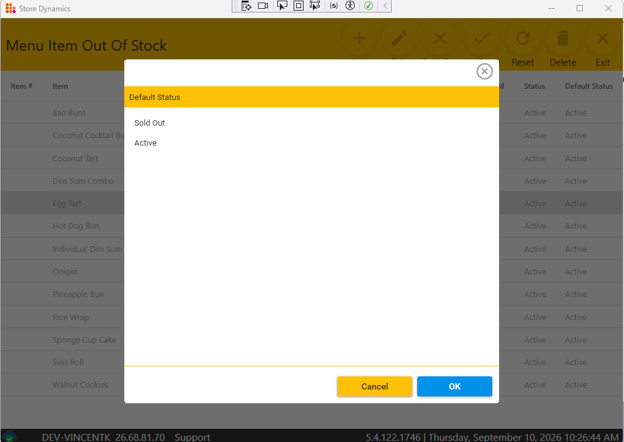
Select The Item and click Edit, then select the Default Status you want item to be in when you click Reset
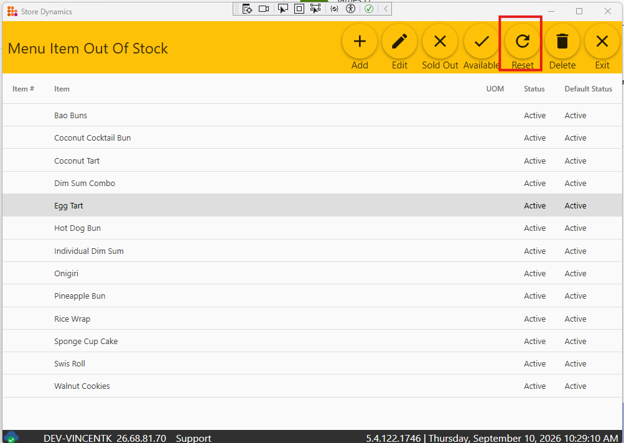
Step 5: Using Reset to Quickly Set All Items Back to Their Default Status
Clicking Reset will set all the items back to their Default Status and send the status of these items to Uber Eats if Uber Integration is setup.
Tag: #86,#SoldOut,#OutOfStock