DataCandy
Store Dynamic 2 Data Candy Integration Setup
Step 1: Set up the Data Candy credentials
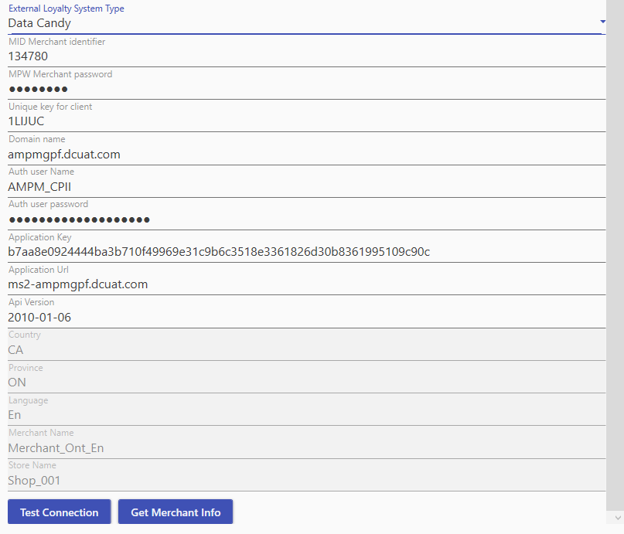
To set up the data cany credential, go to Back Office->System Parameters->Authorization->External Loyalty System Type. Select “Data Candy”. Fill in the credentials provided, and the Api version is “2010-01-06". Click on “Test Connection” to make sure of the connection to Data Candy and click on “Get Merchant Info” to get the rest of the credentials.
Step 2: Add Loyalty Reward Progress Button to the till menu
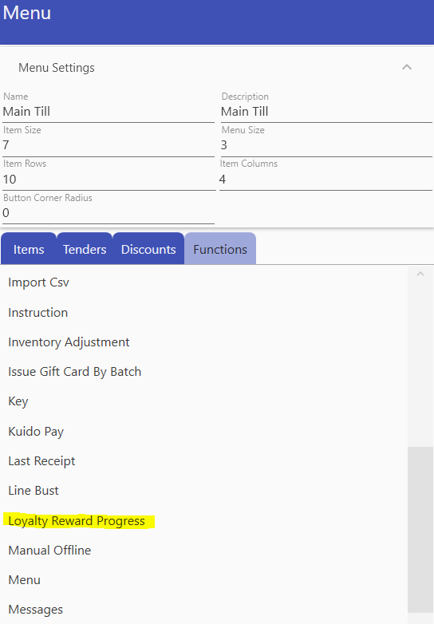
To add “Loyalty Reward Progress” function, go to Back Office-> Items->Menus->Menu->Functions-> Add Loyalty Reward Progress
Step 3: Loyalty Point Redemption Tender
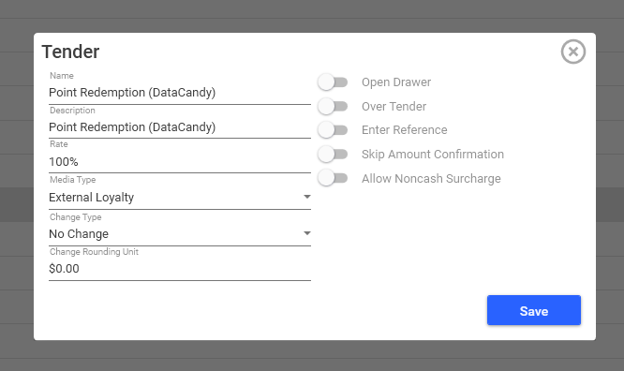
To add Loyal point redemption tender, go to Back Office->Settings->Tender-> Add New-> Name - “Point Redemption (DataCandy)”, Description - “Point Redemption (DataCandy)”, Media Type - “External Loyalty”, Change Type - “No Change”, Open Drawer – toggle off, Over Tender – toggle off then Save.
Step 4: Point Redemption (DataCandy) Button to till Menu
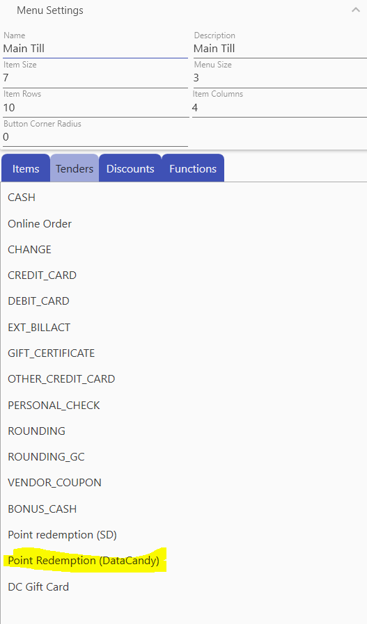
To add “Point Redemption (DataCandy)” function, go to Back Office-> Items->Menus->Menu->Tender-> Add Point Redemption (DataCandy) then Save.
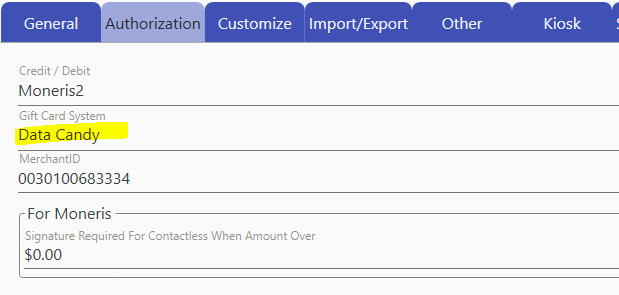
Step 5: Set Data Candy Gift Card System
To add Data Candy Gift Card System, go to Back Office->System Parameters->Authorization-> Gift Card System select “Data Candy”
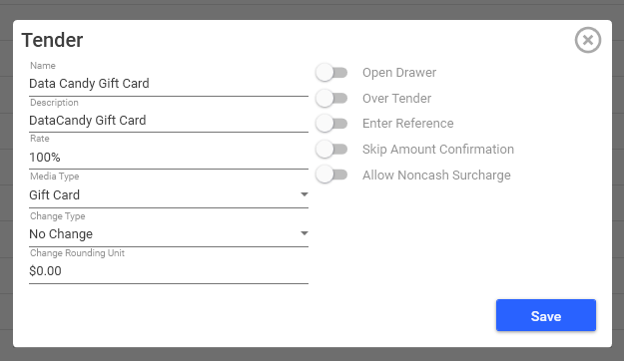
Step 6: Add Data Candy Gift Card Tender
To add Data Candy Gift Card tender, go to Back Office->Settings->Tender-> Add New-> Name - “Data Candy Gift Card”, Description - “Data Candy Gift Card”, Media Type - “Gift Card”, Change Type - “No Change”, Open Drawer – toggle off, Over Tender – toggle off then Save.
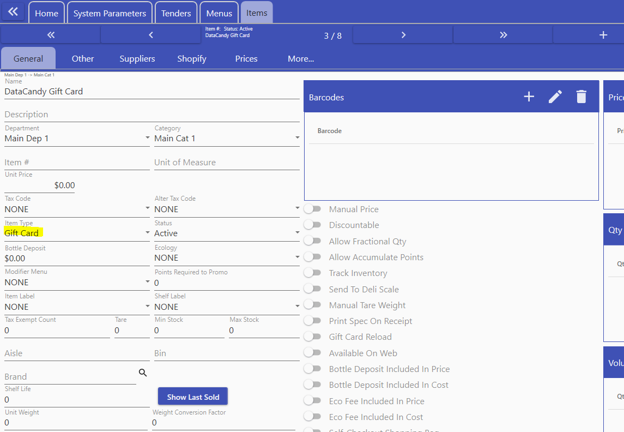
Step 7: Add Data Candy Gift Card Item
To add Data Candy Gift Card item, go to Back Office->Items-> Add New-> Name - “Data Candy Gift Card”, Item Type - “Gift Card” then Save.
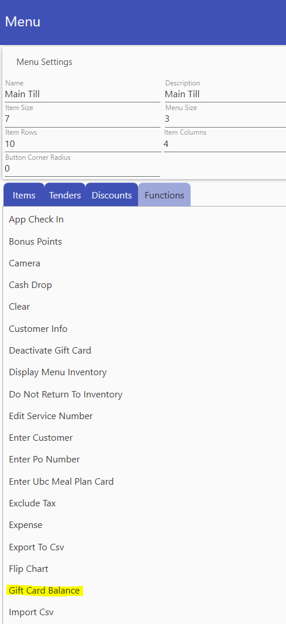
Step 8: Data Candy Gift Card Balance Button to till Menu
To add “Gift Card Balance (DataCandy)” function, go to Back Office-> Items->Menus->Menu-> Function-> Add Gift Card Balance then Save.
Step 9: Add Data Candy Gift Card Reload Button to till Menu
To add “Gift Card (DataCandy)” function, go to Back Office-> Items->Menus->Menu-> Item-> Search “Data Candy Gift Card” item then add and save.
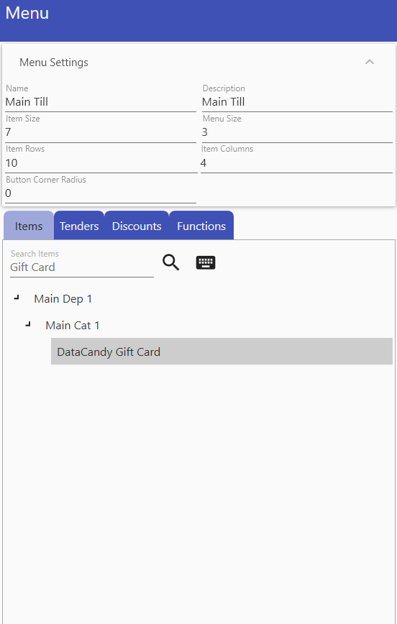
Step 10: Add Data Candy Gift Card Payment Button to till Menu
To add “Gift Card (DataCandy) Payment” tender, go to Back Office-> Items->Menus->Menu-> Tender-> select “Data Candy Gift Card” tender then add and save.
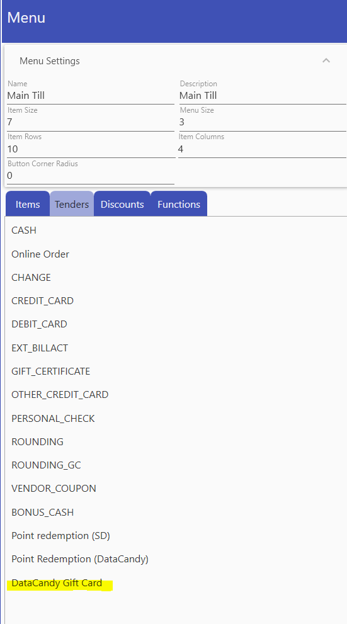
Loyalty Features
Loyalty Reward Progress
Function: This button allows the cashier to check a customer's current loyalty status without making a sale. It displays their accumulated points or how close they are to earning a specific reward and available rewards. The cashier can print the customer copy by clicking on the “OK” button.
Point Redemption (Data Candy)
Function: This creates a payment method ("Tender") that allows customers to pay for their purchase using their accumulated loyalty points. When selected during a transaction, it deducts the equivalent value from their loyalty account to cover the cost of the items.
Gift Card Features
Data Candy Gift Card (The Item/Reload)
Function: This function is used when a customer wants to buy a new gift card or add money (reload) to an existing one. It treats the gift card as an item being sold so the cashier can collect payment for the load amount.
Gift Card Balance
Function: This button performs a quick inquiry to check how much money is currently remaining on a customer's gift card. It is useful for answering customer questions before they reach the payment stage.
Gift Card Payment (The Tender)
Function: This function allows the cashier to accept a gift card as payment for goods. It processes the card as a "Tender" to finalize the sale and deduct the purchase amount from the card's balance.
Data Candy Sample Receipts
Tag: