Blue Rewards Integration
The Blue Rewards is a third-party loyalty program (https://www.bluerewards.ca/en.html). Its members can collect points and redeem points which are called Blue Rewards Cash. In this integration, SD manages the in-store Blue Rewards experience, while Blue Rewards manages the loyalty rules and offer decisions.
On the SD till at checkout:
- Captures the customer’s Blue Rewards collector number by card scan or swipe.
- Sends Blue Rewards detailed basket information, including products, quantities, prices, discounts reflected in final amounts, categories, departments, taxes, store, terminal, and transaction details.
- Requests the customer’s available points and Cash balance.
- Allows eligible Blue Rewards Cash to be redeemed as part of payment.
- Submits the completed transaction so Blue Rewards can determine which offers apply and how many points should be awarded.
- Processes corresponding points returns and Cash reversals when merchandise is refunded.
- Records offer, points, redemption, confirmation, and transaction results for reconciliation.
- Communicates the outcome to the customer through the POS display, balance slips, and sales or refund receipts.
Store Dynamic 2 Blue Rewards Integration Setup
Step 1: Set up the Blue Rewards credentials
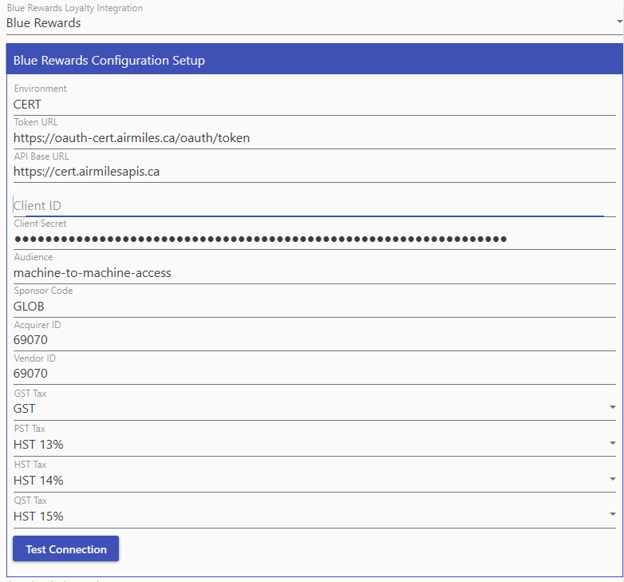
To set up the blue rewards credential, go to Back Office->System Parameters->Authorization->Blue Rewards Loyalty Integration. Select “Blue Rewards”. Fill in the credentials provided. Click on “Test Connection” to make sure of the connection to Blue Rewards.
Step 2: Blue Rewards Point Redemption Tender
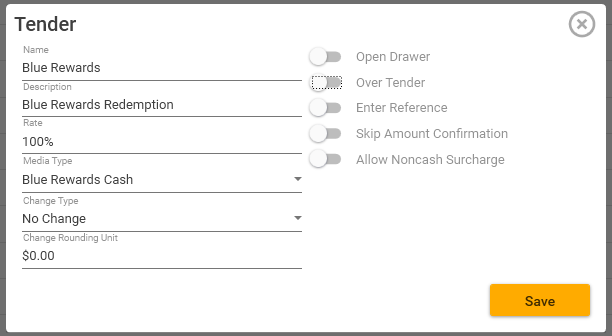
To add Blue Rewards redemption tender, go to Back Office->Settings->Tender-> Add New-> Name - “Blue Rewards”, Description - “Blue Rewards Redemption”, Media Type - “Blue Rewards Cash”, Change Type - “No Change”, Open Drawer – toggle off, Over Tender – toggle off then Save.
Step 3: Blue Rewards Redemption Button to till Menu
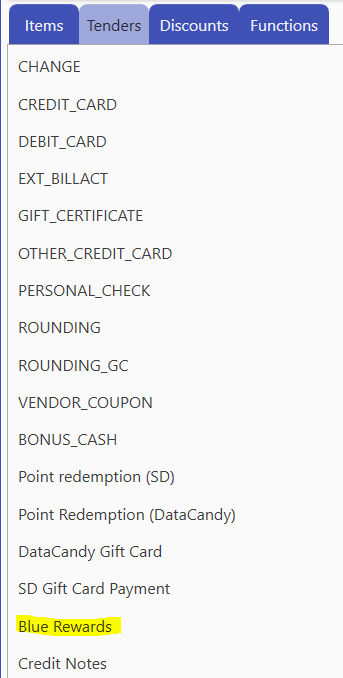
To add “Blue Rewards Redemption” function, go to Back Office-> Items->Menus->Menu->Tender-> Add Blue Rewards then Save.
Step 4: Add Blue Rewards Balance Check Button to the till menu
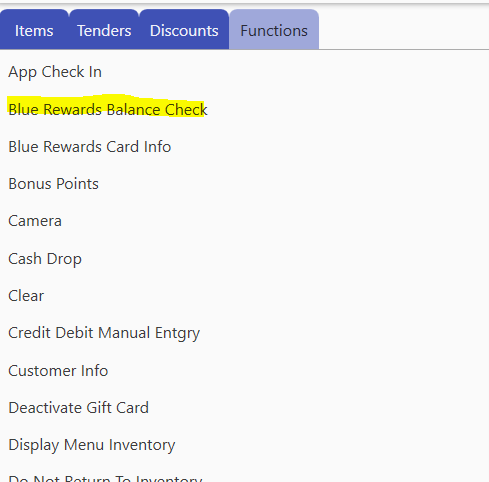
To add “Blue Rewards Balance Check” function, go to Back Office-> Items->Menus->Menu->Functions-> Add Blue Rewards Balance Check
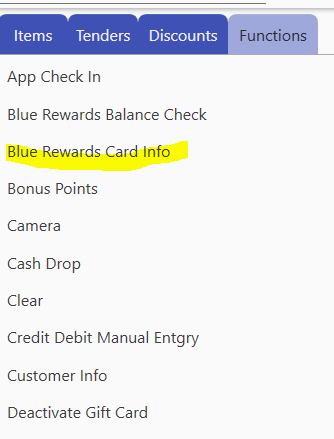
Step 5: Add Blue Rewards Card Info Button to the till menu
To add “Blue Rewards Card Info” function, go to Back Office-> Items->Menus->Menu->Functions-> Add Blue Rewards Card Info
Tag: