Smart receiving
Smart Receiving (Intelligent Invoice Import) uses AI to read a supplier invoice from a PDF or image and turn its item lines into Purchase Order lines. You upload the invoice, it is read in the background, and then you review what was read, correct anything that is wrong, and apply it to the Purchase Order. The column mapping you save for a supplier is reused automatically for that supplier's next invoices, so invoices from the same supplier get quicker to process over time.
Before You Start
- Open or create the correct Purchase Order and select its supplier first. Items are matched against this supplier's items, and mapping templates are saved per supplier.
- Use a clear PDF, JPG, JPEG, or PNG invoice. For a multi-page invoice, upload all pages in one PDF.
- Confirm the invoice belongs to the selected supplier.
- The store must have enough Intelligent Invoice page credit. Credit is used for each invoice page that is read. Re-reading an invoice with a template (Retry on the review screen) does not use more credit.
- The Purchase Order is saved automatically when you upload the invoice, because the invoice is stored with the Purchase Order.
Import the Invoice
- Open the Purchase Order
In SD Desktop, open the Purchase Order that should receive the invoice. Select the supplier before continuing.
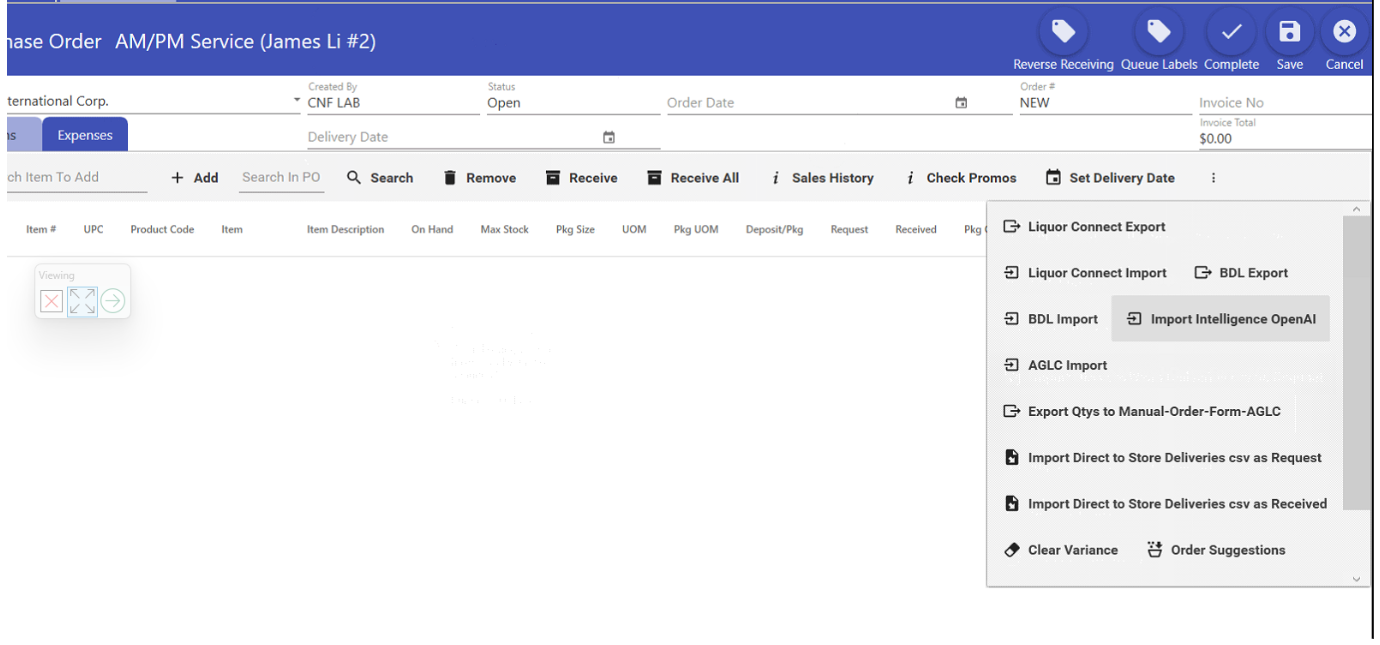
- Start Intelligent Import
Open the Purchase Order options menu and select Import Intelligence OpenAI. The Invoice Imports window opens and lists the invoices already uploaded for this Purchase Order. Click Upload, choose the invoice file, and confirm the message to save the Purchase Order. The upload runs in the background, so you can keep working while the invoice is read.
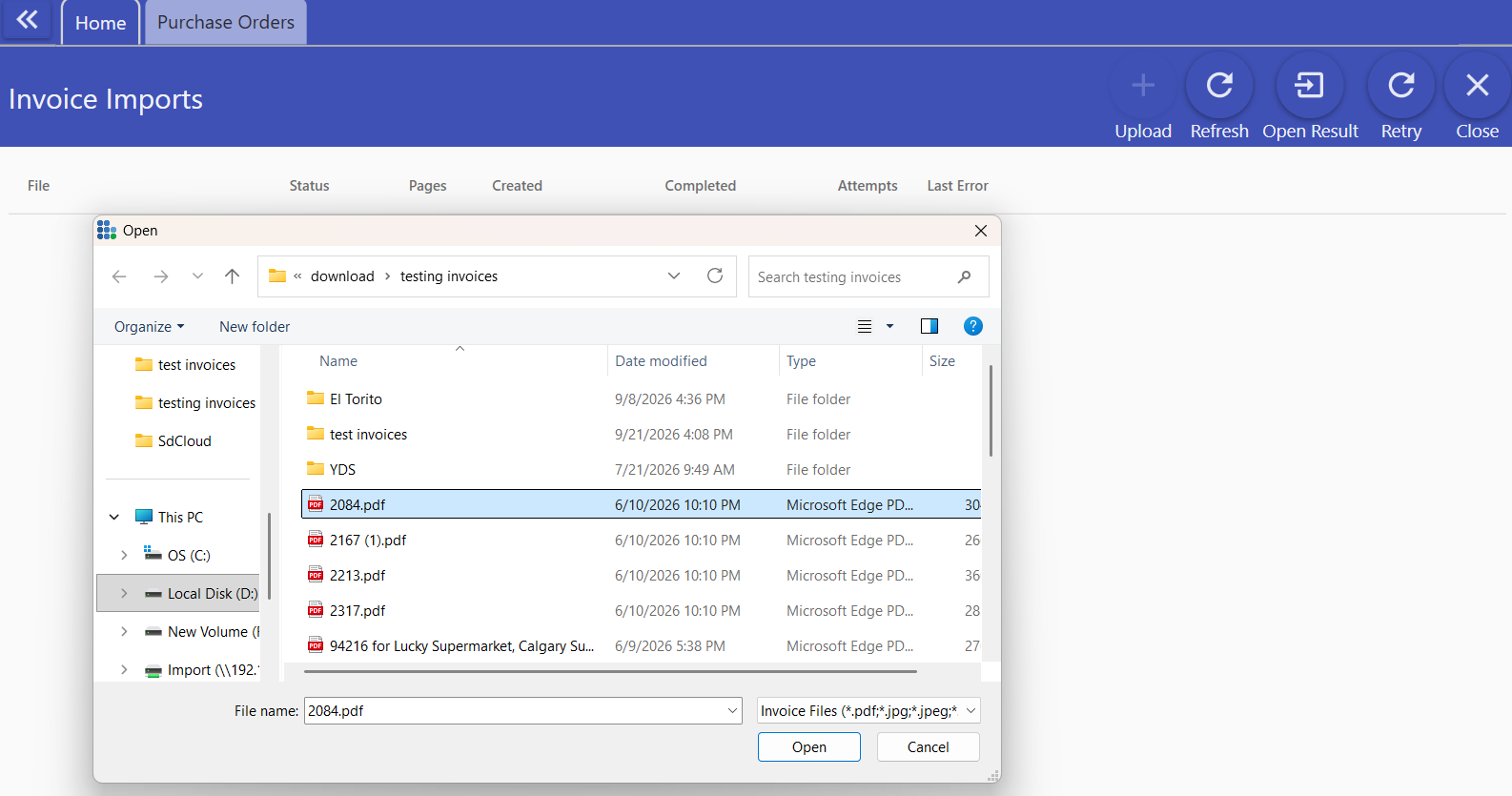
The invoice appears in the list as Queued, then Processing, and finally Complete. Click Refresh to update the list. You can close the window while the invoice is being read and come back later from the same menu. When the status is Complete, select the invoice and click Open Result to open the AI Invoice Import Review screen.
| Column | Meaning |
|---|---|
| File | The name of the uploaded invoice file. |
| Status | Queued: waiting to be read. Processing: being read now. Complete: ready, click Open Result. Failed: could not be read, see Last Error. |
| Pages | The number of invoice pages read, which is the page credit used. |
| Created | When the invoice was uploaded. |
| Completed | When reading finished. |
| Attempts | How many times the invoice has been read. |
| Last Error | Why the last attempt failed, if it did. |
Only a Complete invoice can be opened. If an invoice shows Failed, select it and click Retry to read it again.
- Select the invoice tables
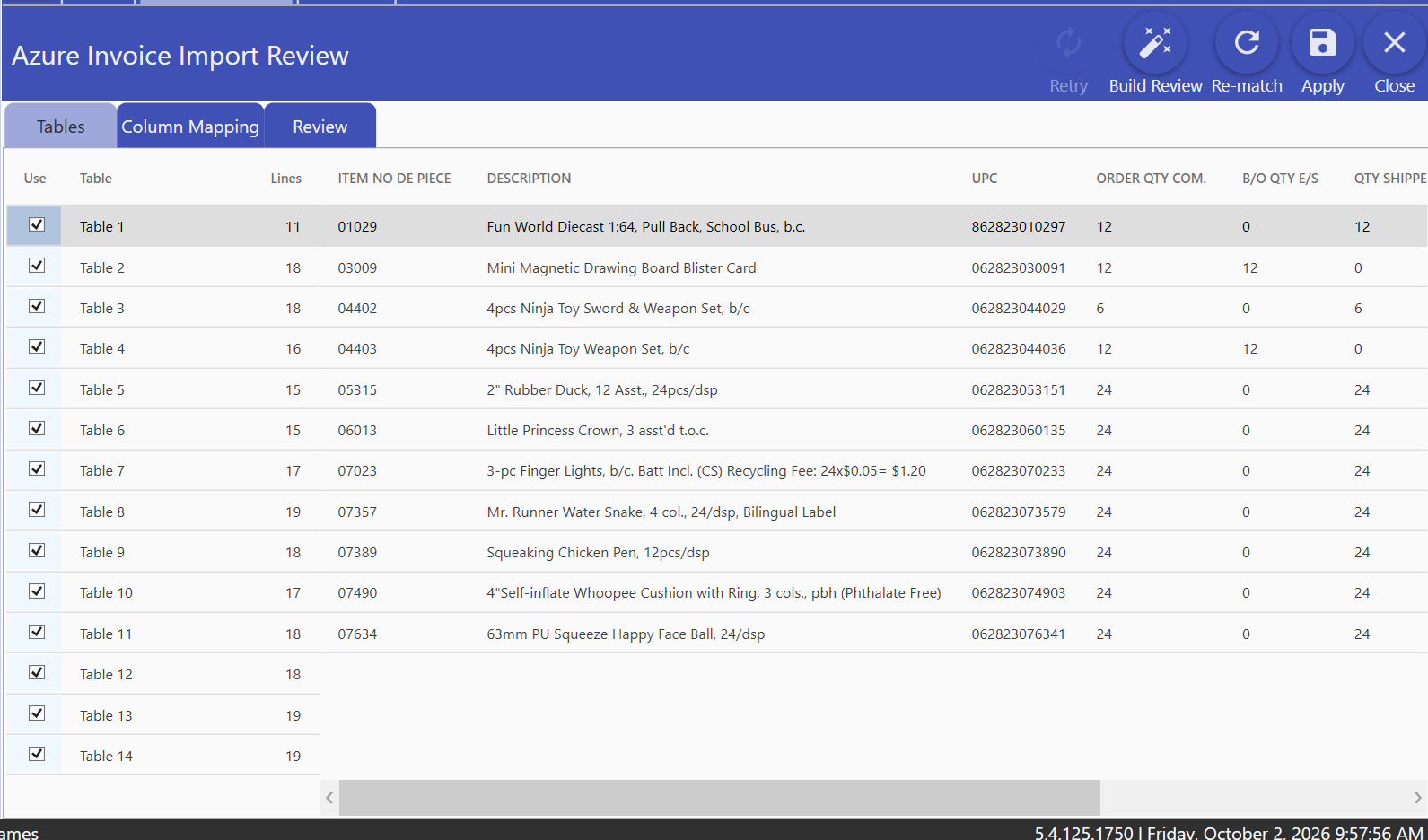
The review screen has three tabs: Tables, Column Mapping and Review. The title bar shows the PO number, supplier and file name, so you always know which invoice you are working on.
The Tables tab lists every item table the AI found on the left, normally one table per invoice page. Click a table to preview its rows on the right. Check Use only for tables that contain item lines, and leave headers, totals, notes, and unrelated tables unchecked. The Lines column shows how many lines were recognized in each table. All checked tables must have the same columns.
Rows or cells highlighted in orange are values the system could not fully verify. Hover over them to see why, for example a barcode with a wrong check digit, a code that is one digit shorter than the others in its column, or a line that may be one item split across two pages. Compare these with the invoice.
If the invoice prints barcodes inside the description, for example "[0123456789012] Product name", the barcode is moved into its own UPC column automatically.
- Confirm the column mapping
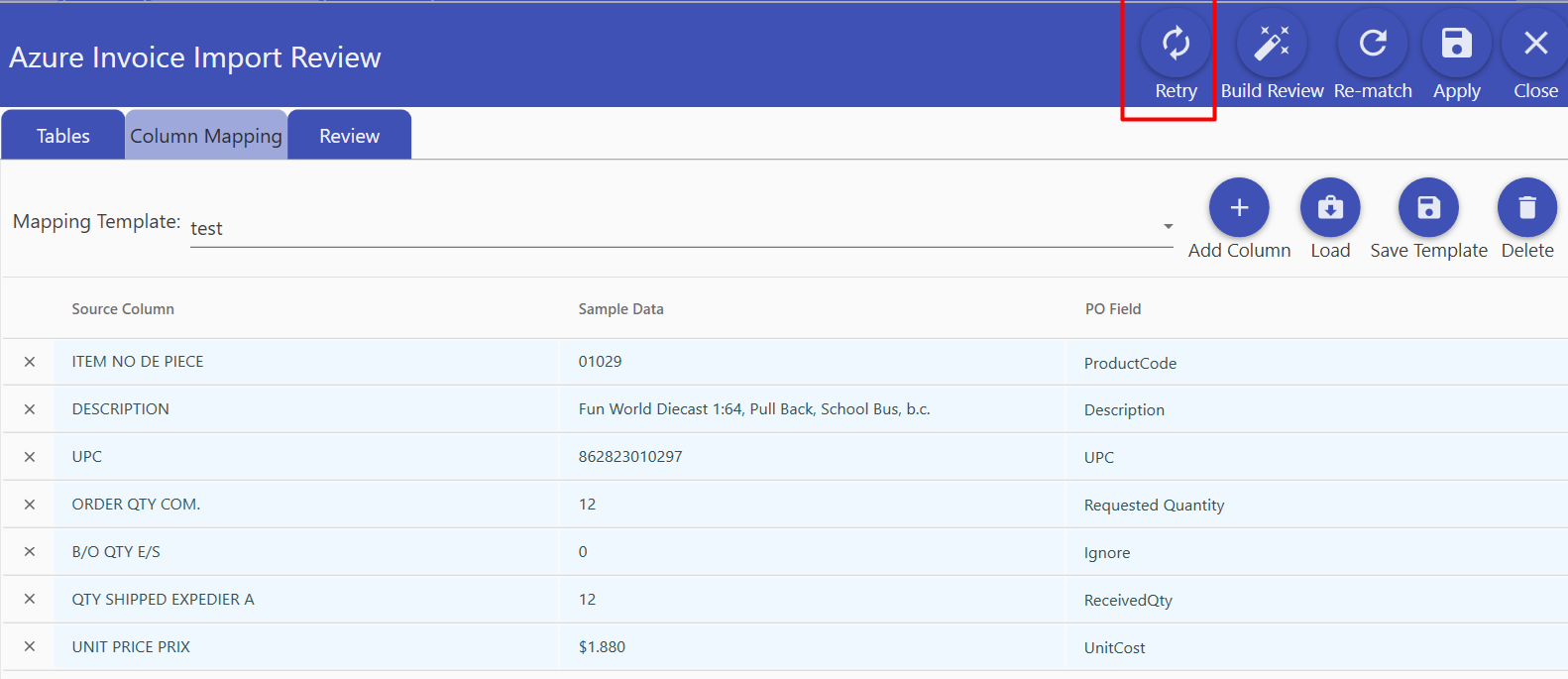
Open the Column Mapping tab. Each row is one column of the invoice:
| Column | Meaning |
|---|---|
| Source Column | The column heading as read from the invoice. It is shown in red when the selected template does not have this column. |
| Sample Data | An example value from that column, to help you recognize it. |
| PO Field | Where the value goes on the Purchase Order. Choose Ignore for anything that should not be imported. |
The system suggests a PO Field from each column heading. For example, "Qty Shipped" becomes ReceivedQty, "Extended Price" becomes LineTotal, and tax or back-order columns become Ignore. Check every suggestion against the invoice and correct it if needed.
PO Field reference
| PO Field | What it means and how it is used |
|---|---|
| ProductCode | The supplier's own code for the product, often printed as Product Code, Item No, SKU or Article. It is matched against the product code on the item's supplier record for this supplier. This is the most reliable way to match items from the same supplier. |
| UPC | The product barcode (UPC, EAN or GTIN). It is matched against your items' barcodes even when the invoice prints it in a different form, such as with or without the check digit or leading zeros. It can also find an item that exists in the store but is not linked to this supplier yet. For new items it is saved as the item's barcode. |
| ItemNumber | Your store's own item number in SD, not the supplier's number. Map it only if the supplier prints your item numbers on the invoice. |
| ItemName | The product name. Used to find an item by its exact name when no code matches, and as the name of new items. |
| Description | A longer product description. It helps matching only together with ItemName and cannot find an item on its own. For new items it becomes the item description. |
| Requested Quantity | The number of packages (cases) ordered. Sets the Request quantity on the Purchase Order. If no requested quantity is mapped, 1 is used. |
| Requested Unit Qty | The ordered quantity in single units. It is divided by the package size to get packages. Map either this or Requested Quantity, not both. |
| ReceivedQty | The number of packages shipped or received. Sets the Received quantity on the Purchase Order. |
| Received Unit Qty | The shipped quantity in single units. It is divided by the package size to get packages. Map either this or ReceivedQty, not both. |
| UOM | The unit of measure printed on the invoice, for example CS, EA or BX. Used as the package unit for new items. |
| UnitCost | The price of one single unit. When no PackageCost is mapped, the package cost is calculated as unit cost × package size. |
| PackageCost | The price of one package (case). Takes priority over UnitCost. |
| PackageSize | How many units are in one package, for example 12 in "12/355ml". If it is not mapped, the package size already set up for the item and supplier is used. |
| LineTotal | The extended amount of the line. Used to check that quantity × package cost is correct, and to work out the package cost (line total ÷ quantity) when no price is mapped. |
| BottleDeposit | The bottle deposit charged per package. It is added to the Purchase Order line. |
| Eco Fee | The environmental fee per package. Shown for information only; it is not added to the Purchase Order. |
| Ignore | The column is read but not imported. |
Mapping rules: each PO Field can be used only once, and at least one of ProductCode, UPC, ItemNumber or ItemName must be mapped so items can be matched. Description alone is not enough. Purchase Order quantities and costs are per package: when the invoice lists single units, map them to the Unit Qty fields and make sure the package size is correct.
Mapping templates: a template remembers a supplier's invoice columns and how they are mapped. The supplier's most recent template is loaded automatically when you open a review, and it is sent with the next invoice from this supplier to help the AI read it. Use the buttons above the grid:
- Add Column: add a column the AI missed. Type its heading as printed on the invoice and a sample value copied from the invoice, then choose its PO Field.
- X (at the start of a row): remove a column so it is no longer read. To keep reading a column without importing it, map it to Ignore instead.
- Load: apply the template selected in the Mapping Template list.
- Save Template: save the current columns and mapping under a name. Saving with an existing name replaces that template.
- Delete: delete the selected template.
After saving a template, click Retry at the top of the screen to read the invoice again using it. Retry does not use more page credit. The review closes and the invoice shows as Queued in Invoice Imports; open it again when it is Complete.
- Build and review the lines
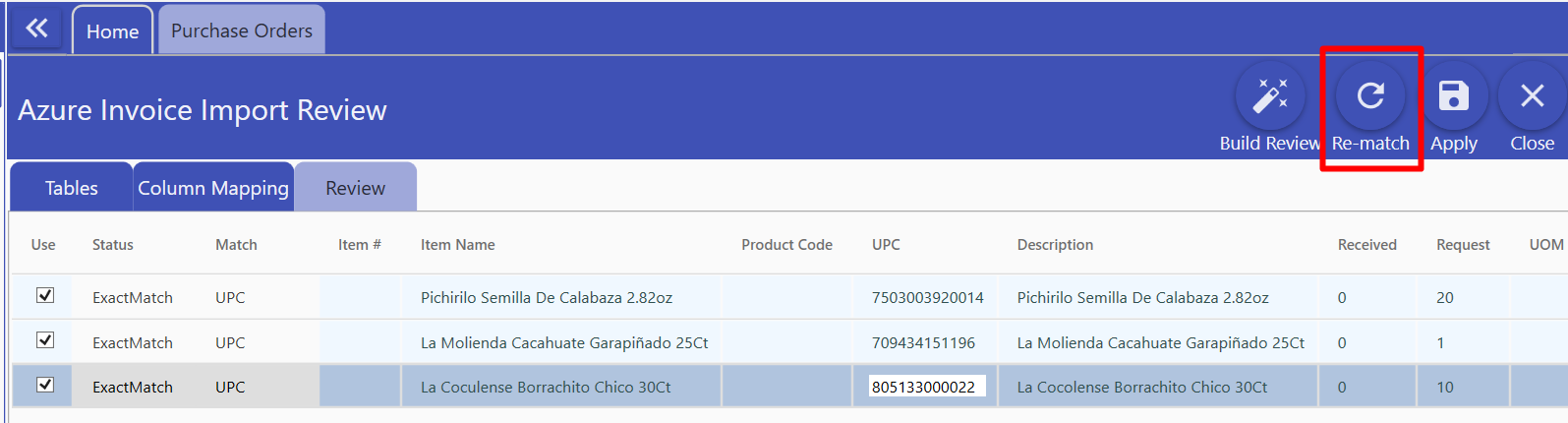
Click Build Review. The system creates one line per invoice row and looks up each item for this supplier. On the Review tab, keep Use checked only for lines that should go on the Purchase Order. Verify the matched item, quantity, UOM, package size, unit cost, package cost and line total, and correct any wrong values directly in the grid.
| Column | Meaning |
|---|---|
| Use | Check to apply this line to the Purchase Order. |
| Status | ExactMatch: the item was found for this supplier. MissingSupplierItem: the item exists in the store but is not assigned to this supplier. MissingItem: no item was found; it will need to be created. |
| Match | Which field found the item: ProductCode, UPC, ItemNumber, ItemName+Description or ItemName. |
| Item # / Item Name | Your store's item number and name, filled in from the matched item. |
| Product Code / UPC / Description | The values read from the invoice. |
| Received | Packages received. |
| Request | Packages ordered. |
| UOM | Unit of measure from the invoice. |
| Unit Cost | Cost of one single unit. |
| Pkg Size | Units per package, from the invoice or, if the invoice has none, from the item's supplier setup. |
| Pkg Cost | Cost of one package. When the invoice has no package price, it is calculated from Unit Cost × Pkg Size, or Line Total ÷ Request. |
| Deposit/Pkg | Bottle deposit per package. |
| Eco Fee/Pkg | Eco fee per package, for information only. |
| Line Total | The extended amount from the invoice. |
| Message | Explains why a line was not matched. |
How items are matched: for each line the system tries ProductCode, then UPC, then ItemNumber, then ItemName together with Description, among this supplier's items. If none of these match, it looks for the same UPC or item number among all store items, and finally tries the item name on its own. An item found outside this supplier's items is marked MissingSupplierItem.
Colors on the Review tab: red quantity, cost and total cells mean quantity × package cost does not equal the line total, which usually means a number was misread. Orange cells or rows are values the system could not verify; hover over them for details. An orange banner at the top means the lines do not add up to the subtotal printed on the invoice, so a line may be missing or listed twice. Correcting a flagged value clears its highlight.
If an identifying value was read incorrectly, such as a product code, UPC or item name, correct it in the grid and click Re-match. The Status changes to ExactMatch when the item is found.
- Apply the import
Click Apply. If any checked line is still highlighted in red or orange, or the lines do not match the invoice subtotal, you are asked to confirm before continuing. Matched lines are added to the Purchase Order, or update the existing line for the same item, with the request quantity, package size, package cost, bottle deposit and received quantity from the invoice. If any checked line is MissingItem or MissingSupplierItem, you are asked whether to create or assign those items.
- Complete missing item information
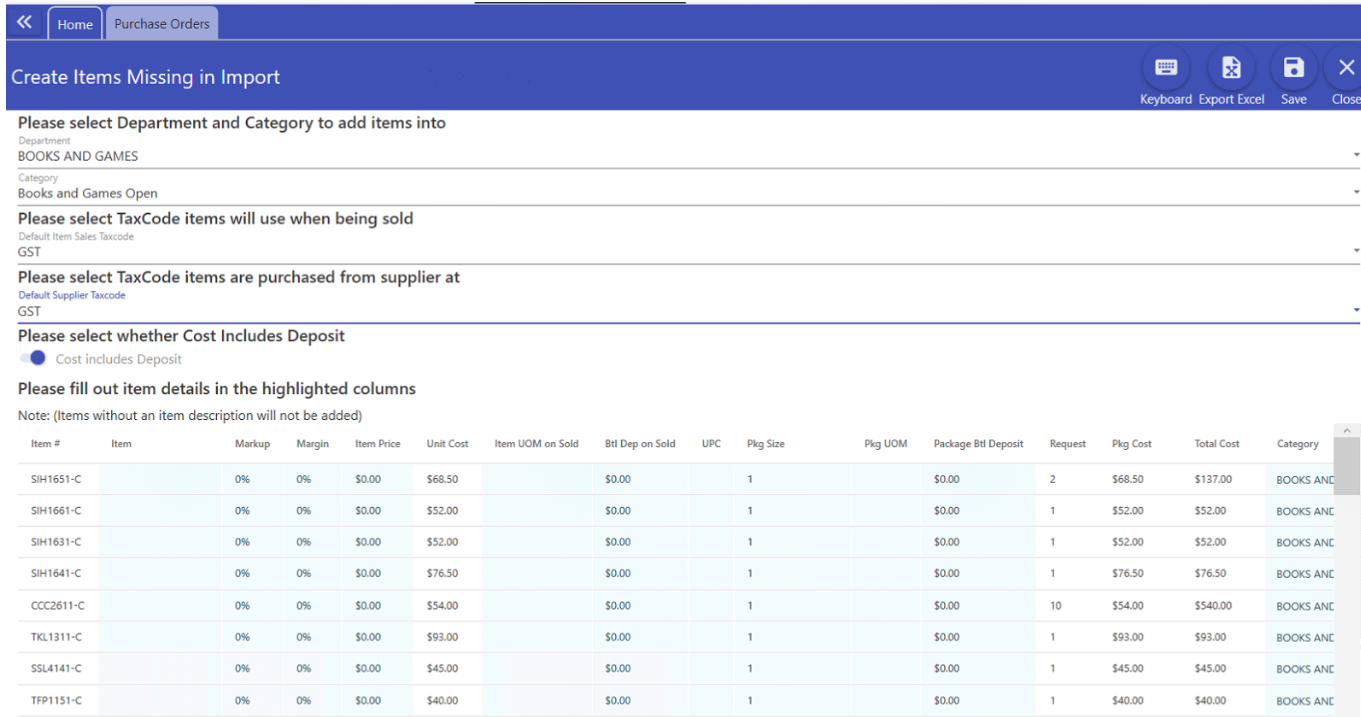
On Create Items Missing in Import, select the department and category for the new items, the sales tax code the items use when sold, the purchase tax code they are bought at, and whether the cost includes the deposit. Complete the highlighted item details, such as the selling price, and click Save. Every new item needs a category; you can also choose a different category per line. Lines without an item name or description are skipped. Items that already exist but were not assigned to this supplier are linked to the supplier. The items are then added to the Purchase Order.
- Verify and finish the Purchase Order
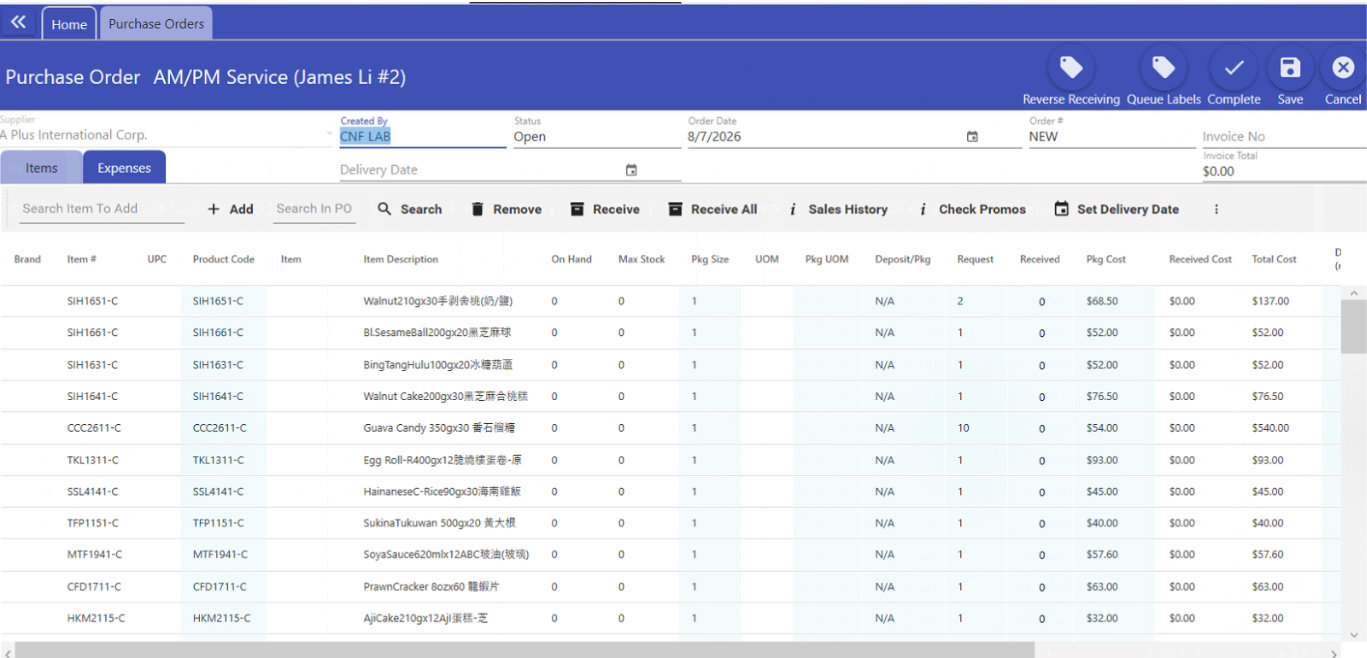
Back on the Purchase Order, compare the imported quantities and costs with the original invoice. Confirm the total, then Save or Complete the Purchase Order.
Final Check
- The supplier matches the invoice.
- Only valid invoice lines were applied.
- Quantities, UOMs, package sizes, and costs match the invoice.
- Missing items were created or assigned correctly.
- The Purchase Order was saved or completed.
If Something Goes Wrong
Supplier message: Select a supplier on the Purchase Order and try again.
Unsupported or unreadable file: Use a clear PDF, PNG, JPG, or JPEG and retry.
Insufficient balance: Purchase additional Intelligent Invoice pages, then retry the import.
Incorrect results: Return to Tables or Column Mapping, correct the selection or mapping, retry and rebuild the review.
All selected tables must have the same columns: uncheck tables that are not item tables, or import tables with a different layout separately.
PO Fields cannot be duplicated: two columns are mapped to the same PO Field. Set one of them to Ignore.
No item matching field is mapped: map at least one of ProductCode, UPC, ItemNumber or ItemName.
A column is missing from the read: on Column Mapping click Add Column, enter its heading and a sample value, save the template, and click Retry.
This invoice is already being read: wait until its status is Complete, then try again.
Service busy, timed out or unavailable: wait a moment and try again. If it keeps happening, contact support.
Tag: