Electronic Shelf Labels
ATI ESL SFTP User Manual
Configuration and item export to ATI electronic shelf labels
Purpose. This integration sends a CSV file by SFTP for items marked as Electronic Shelf Label. ATI receives the file and updates its electronic shelf labels.
Before you begin
- Obtain the SFTP host, port, username, password, remote directory, and store location code from ATI.
- Verify that every item you want to send has the Electronic Shelf Label option enabled.
- The remote directory is a path on the SFTP server; do not use a local Windows path such as C:\Users\...
- Solum settings and ATI ESL SFTP settings are independent. You can use either integration or both.
Process overview
- Configure ATI ESL SFTP in Integration > Electronic Shelf Label.
- Enable Electronic Shelf Label on each item that must be sent.
- Open Labels > Electronic Shelf Labels and select Update.
- Confirm the success message and verify that ATI received the CSV file.
1 Configure ATI ESL SFTP
Open the Integration menu and select Electronic Shelf Label.
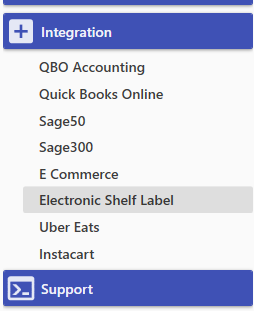
Figure 1. Integration menu path.
In the ATI ESL SFTP section, enter the details supplied by ATI and enable Enabled. Then select the Save icon.
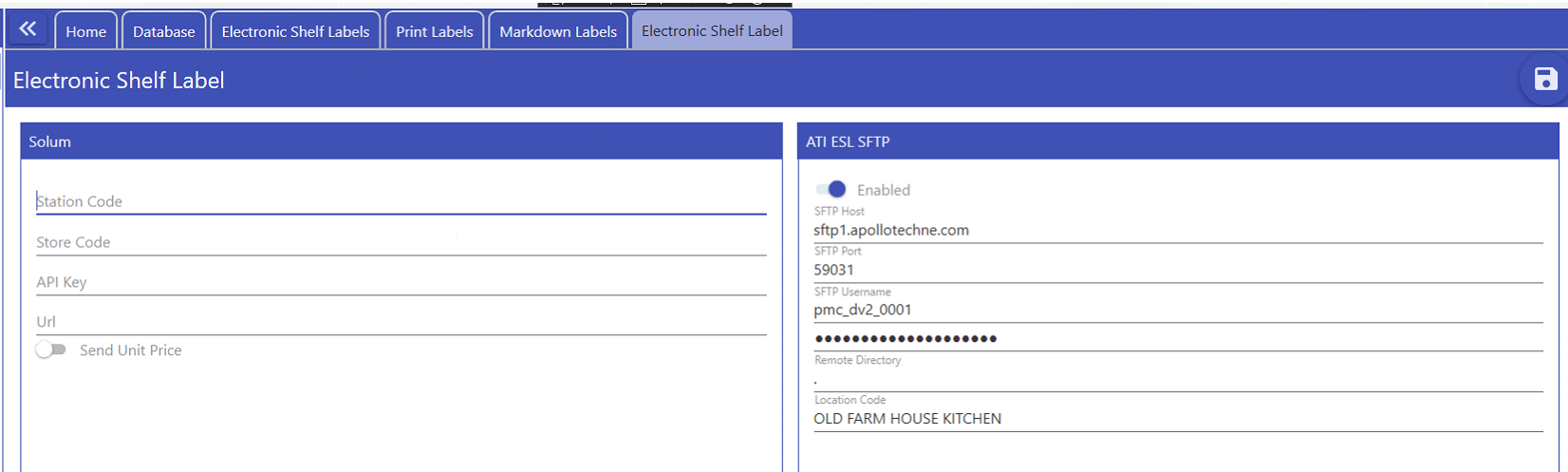
Figure 2. ATI ESL SFTP configuration. The values shown are examples, not real credentials.
Field descriptions
Field
Purpose
Enabled
Enables ATI exports.
SFTP Host and Port
Server and port provided by ATI. The usual port is 22.
SFTP Username and Password
Access credentials provided by ATI.
Remote Directory
Folder on the SFTP server where the file is uploaded.
Location Code
Code that identifies the store to ATI.
2 Select the items to export
Open the item in Items. On the item screen, enable the Electronic Shelf Label toggle and save the change. Only items with this option enabled are included in the ATI file.
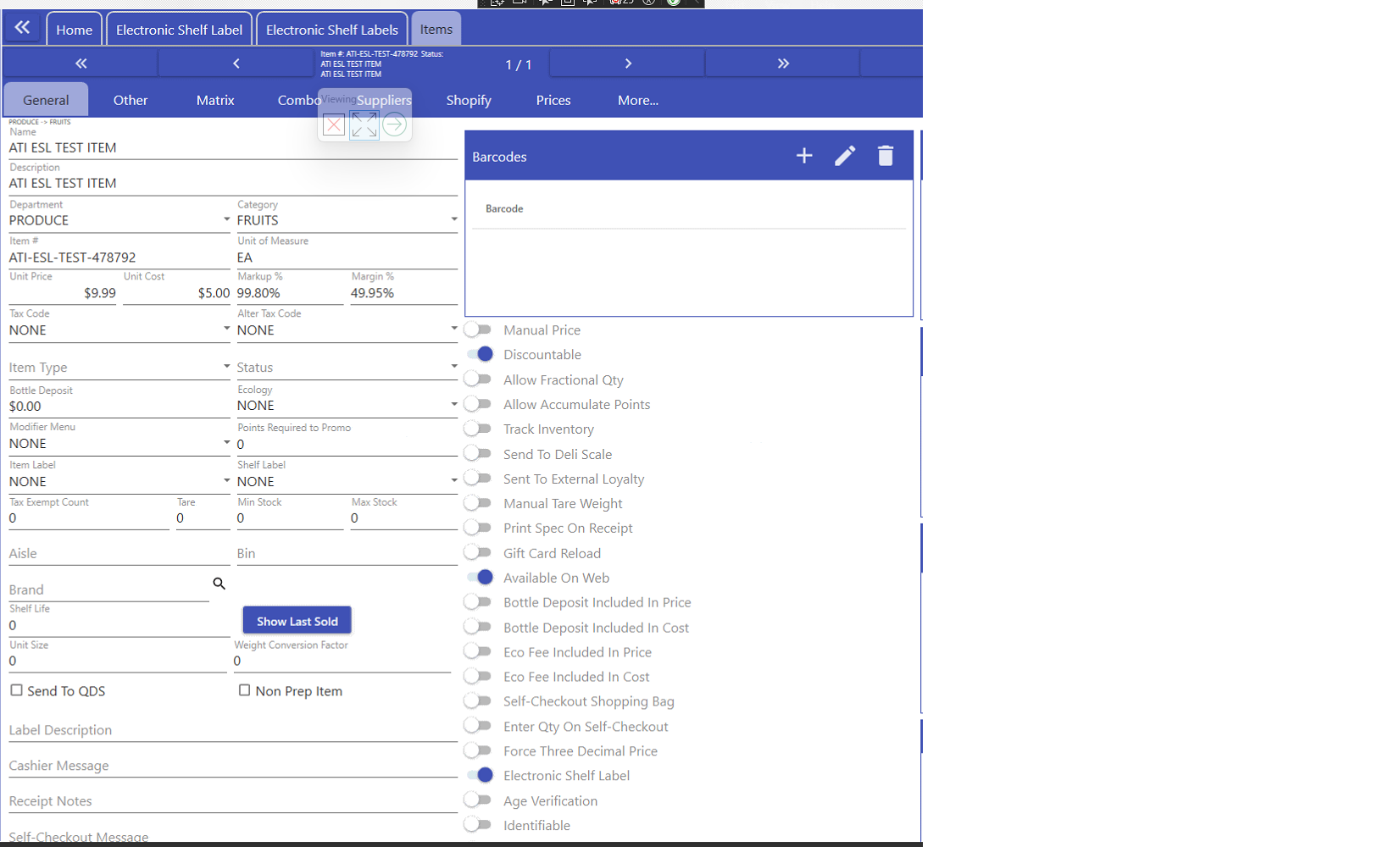
Figure 3. Electronic Shelf Label enabled on an item.
3 Generate and send the file
Open Labels and select Electronic Shelf Labels.
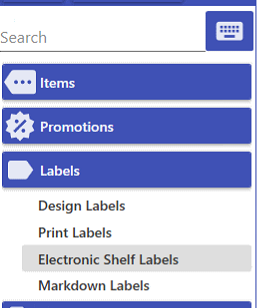
Figure 4. Path to the electronic shelf label list.
Verify that the item appears in the list. To send the file to ATI, select Update in the upper-right corner.
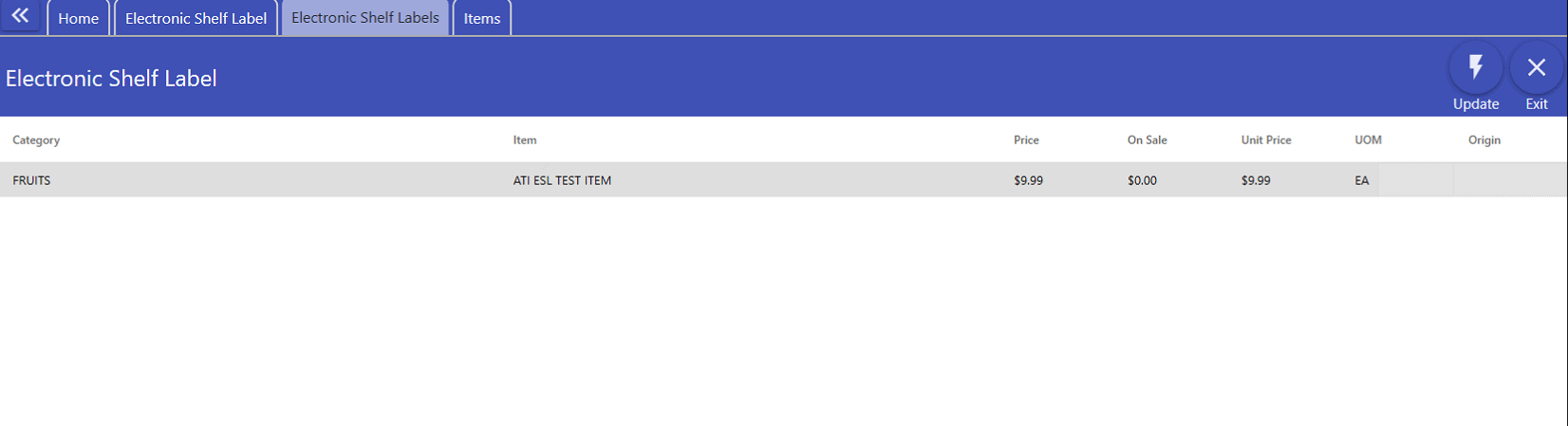
Figure 5. Item list and Update button.
4 Confirm that the export completed
When the process finishes successfully, the system displays the message Electronic Shelf Labels are updated.
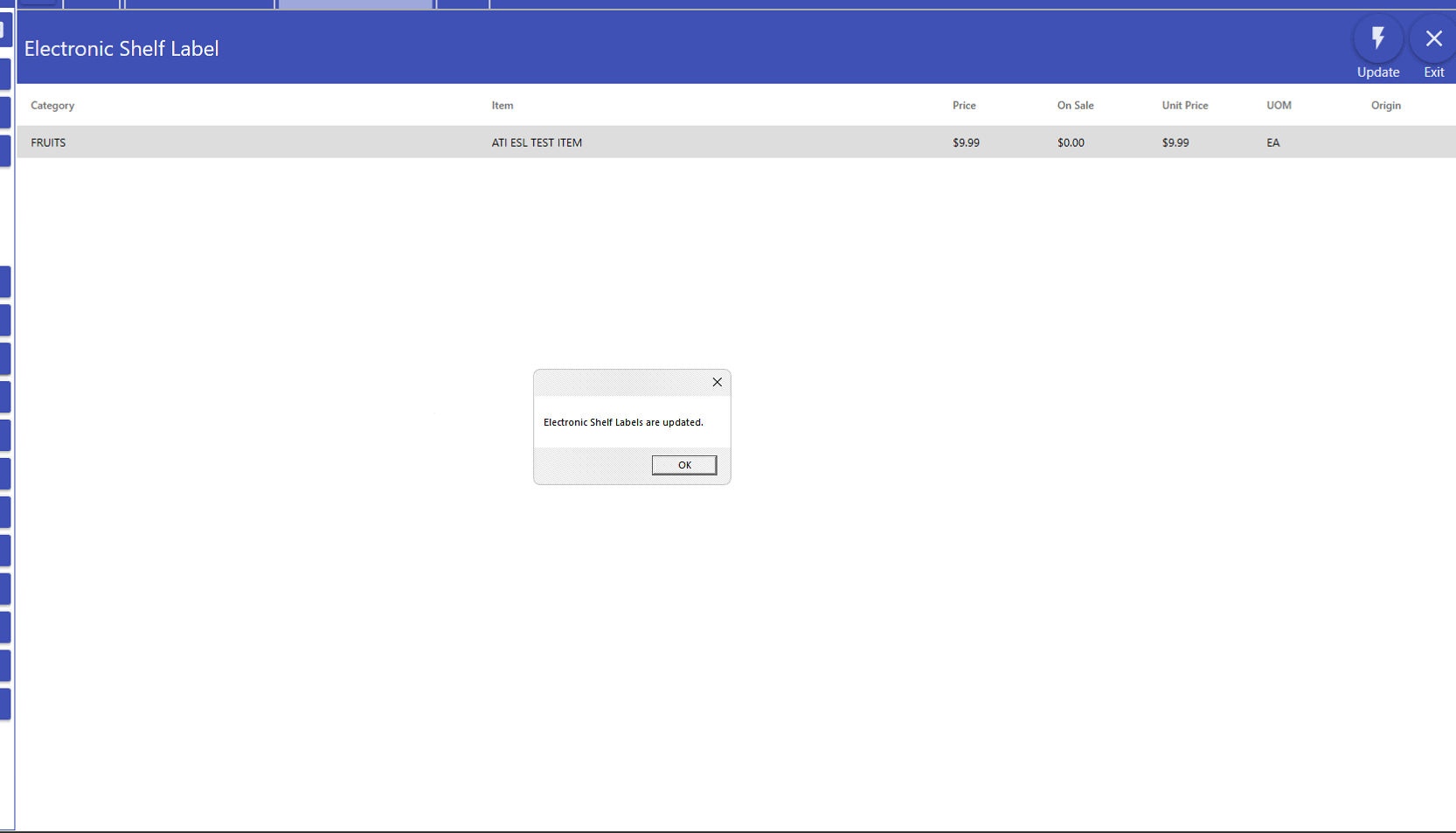
Figure 6. Successful export confirmation.
5 Verify the received file
The file is created with a name similar to ati_esl_full_YYYYMMDD.csv in the configured remote directory. Verification on the SFTP server is optional for the Store Dealer user, but useful during initial setup.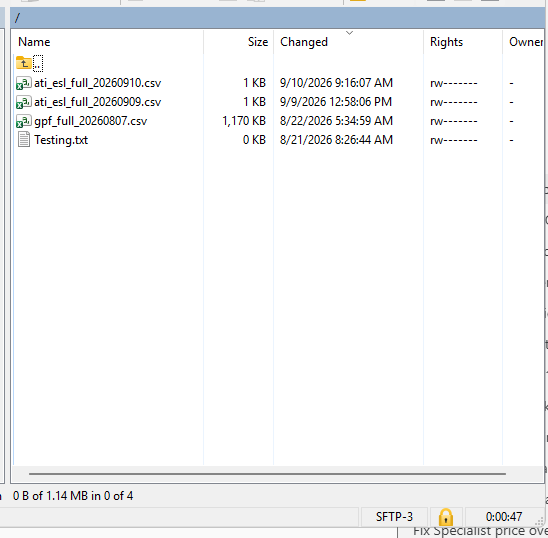
Figure 7. CSV file created in the remote SFTP folder.
Information included in the file
In addition to standard catalog fields, the file contains the three fields requested by ATI: sale_price, supplier_code, and pack_size.
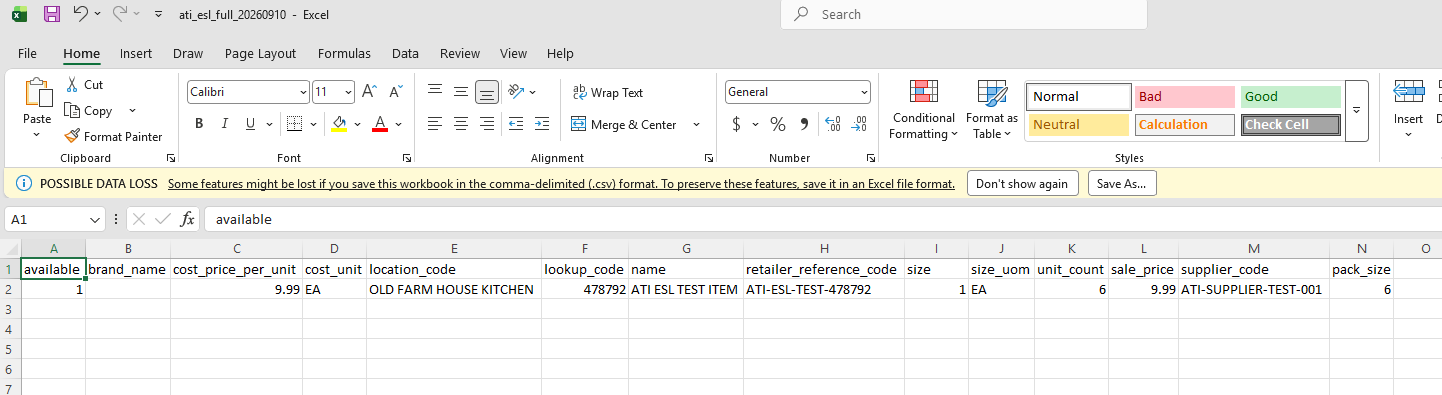
Figure 8. Example of the generated CSV file.
- sale_price: sale price; if no sale price exists, the unit price is used.
- supplier_code: product code of the default supplier.
- pack_size: package size of the default supplier.
Common issues
|
Situation |
What to check |
|
An item does not appear in the list |
Confirm that Electronic Shelf Label is enabled on the item and save the change. |
|
Connection error |
Review the host, port, username, and password with ATI. Also confirm that the network allows the SFTP connection. |
|
Remote Directory error |
Use the server path supplied by ATI. Do not enter a local Windows path. |
|
The file was sent but ATI does not update labels |
Confirm with ATI that the Location Code and file format match the store. |
Tag: